Multi-factor Authentication (MFA) is a security system to verify a user’s identity during a transaction or when logging in to a secure application or an online account, like your email service provider. As the name suggests, users will be required to provide at least one additional verification factor besides the email and password to access the resource. MFA is a critical component of identity and access management (IAM) that helps strengthen one’s digital identity against unauthorised access. If an attacker cracks the first layer, the password, the second layer of authentication will serve as a supplementary barrier that protects the resource from being compromised.
The Different Types Authentication
Organisations worldwide are increasingly using multi-factor authentication to enhance data security and safeguard sensitive information from being stolen illegally. Different types of authentication factors are used in combination with a username and password to verify the one’s identity.
The three most standard factors include:
- Knowledge factor (something you already know): The user provides an answer to a secret question. You may have come across questions like “what is your mother’s maiden name?” or “what was the model of your first car?” while setting up online banking, for instance.
- Possession factor (something you have): It can be a specific piece of information or device and takes the form of a wireless tag, a key fob, or a device that belongs to you. For mobile authentication, the possession factor becomes your mobile device, along with the one-time password (OTP) that you receive when logging in.
- Inherence factor (something you are): Biometric authentication methods fall under this category and include any of your biological traits that have been already confirmed for login. This category incorporates the strongest authentication methods, including fingerprint or retina scans or facial and voice recognition.
The other, less frequently used factors are:
- Behaviour factor (something you do): This method of authentication is probably the least utilised among all and verifies identities based on specified actions. For instance, users of Windows 8 had the option of a Picture Password, where they could choose a picture and set up touches or gestures on it to validate their identity when logging in.
- Location factor (somewhere you are): It requires you to verify your current geolocation, typically using your mobile device’s GPS tracking. An organisation can also verify users using their device’s IP address or Media Access Control (MAC) address, which restricts the access to a system to users within a specified geographic area.
- Time factor: It restricts users to authenticate their identity within a set range of hours. It is highly suited for employees expected to log in only during a specified time period. When combined with the location factor, time-based authentication enhances security. For instance, if there is an attempt to log into a system from somewhere in Europe, followed by another attempt within the next few minutes from a distant region like South America or even another European country, the event can easily be flagged as a security breach.
Announcing Multi-Factor Authentication In SmartFarm®
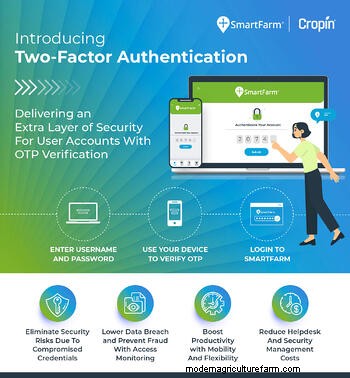
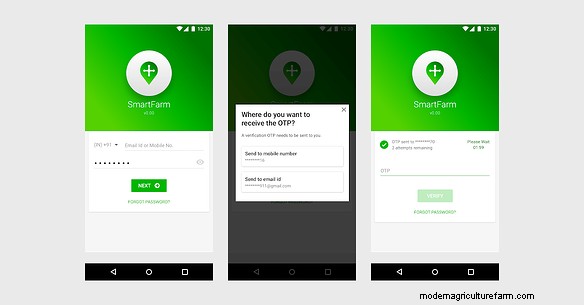
CropIn, in its latest Sprint release, is introducing a 2-step verification in SmartFarm® (mobile and web). As explained above, this feature will add an additional layer of security and eliminate data security risks that compromised credentials could result in. Users will be prompted to submit a one-time password (OTP) sent to their registered mobile number or email when logging in to the SmartFarm® application, in addition to their username and password. However, you can skip the OTP verification if you are logging in from the same device.
How Do I Activate and Use Multi-Factor Authentication?
As soon as you upgrade your application to the latest version, you can enable 2-step verification by navigating to Setup in the Web application’s and selecting the newly-added section Security Configuration under Company.
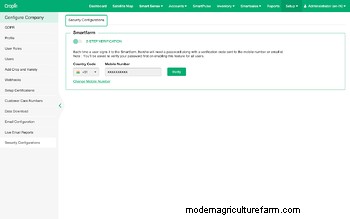
Before proceeding to the next step, validate your registered mobile by clicking on the “Verify” button and input the OTP that you receive that you receive in your mobile phone. Upon successful authentication, the mobile number will be marked as verified, following which you can confirm the account password and enable 2-step verification. You may use the same option to change your mobile number when required and verify it again.
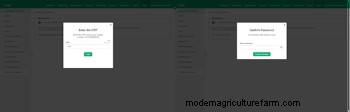
Two-Factor Verification on SmartFarm®
Web Application Login
Mobile Application Login
Note:
- 2-Step Verification is always disabled by default. When enabled, this feature automatically applies to all the users in the organisation.
- Your registered mobile number and email ID must be unique.
Got questions? Reach out to your Customer success manager for further details!


